
How to scan Android and iOS apps for security vulnerabilities with GoMobSec
Last updated: October 31, 2026
GoMobSec tests Android and iOS apps for security issues. You upload an APK or IPA; GoMobSec decompiles it, runs more than 25 security tools over it, has AI review every finding, and maps the results to OWASP MASVS. You get findings with code-level fixes and a report you can hand to developers or auditors. This guide follows the whole journey, from creating an account to running scans from CI, Discord or your AI assistant.
How to read the screenshots: each green numbered marker matches the step with the same number in the list below the screenshot.
1. Sign up and log in
The free Community plan needs no credit card. It includes three scans a month, so you can try GoMobSec on your own app before you choose a plan.
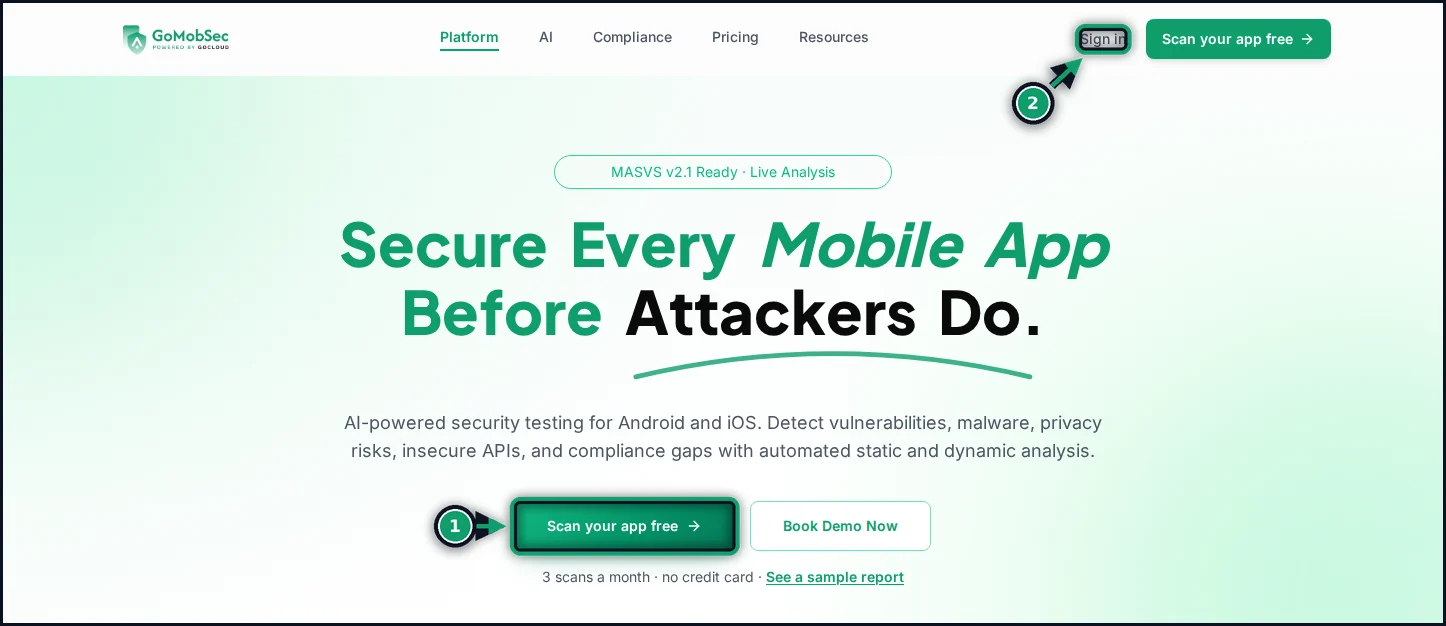
- On gomobsec.ai, click Scan your app free.
- Already have an account? Click Sign in instead and go to the login steps below.
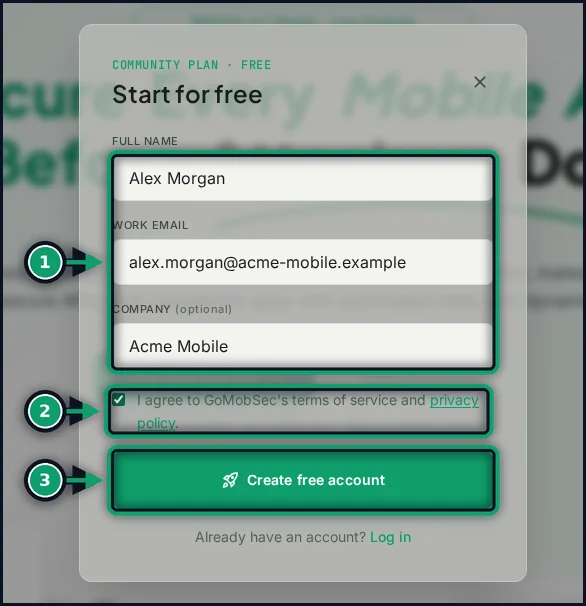
- Enter your full name and work email. Company is optional.
- Accept the terms of service and privacy policy.
- Click Create free account. Where Google or LinkedIn sign-up is offered on the form, you can use that instead and skip the email step.
We email you an activation link. Open it and choose your password, and your account is ready. The email can take a couple of minutes. Gmail often files it under Promotions, so check there and in Spam before signing up again. Disposable email addresses are not accepted.
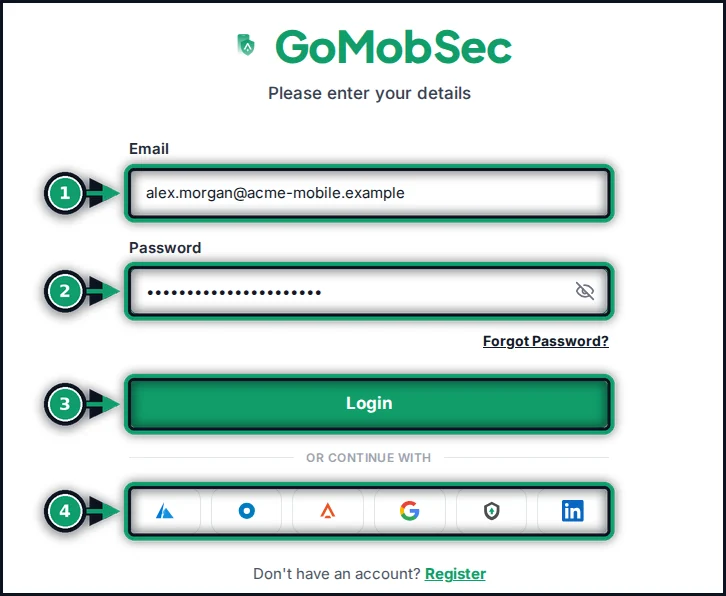
- Enter the email address you signed up with.
- Enter your password. Use Forgot Password? if you need a reset link.
- Click Login.
- If your organisation uses single sign-on (Azure AD, Okta, Auth0, Google, Keycloak or LinkedIn), click its button instead. Providers your organisation has not set up are greyed out.
2. Find your way around
After you log in you land on the dashboard.
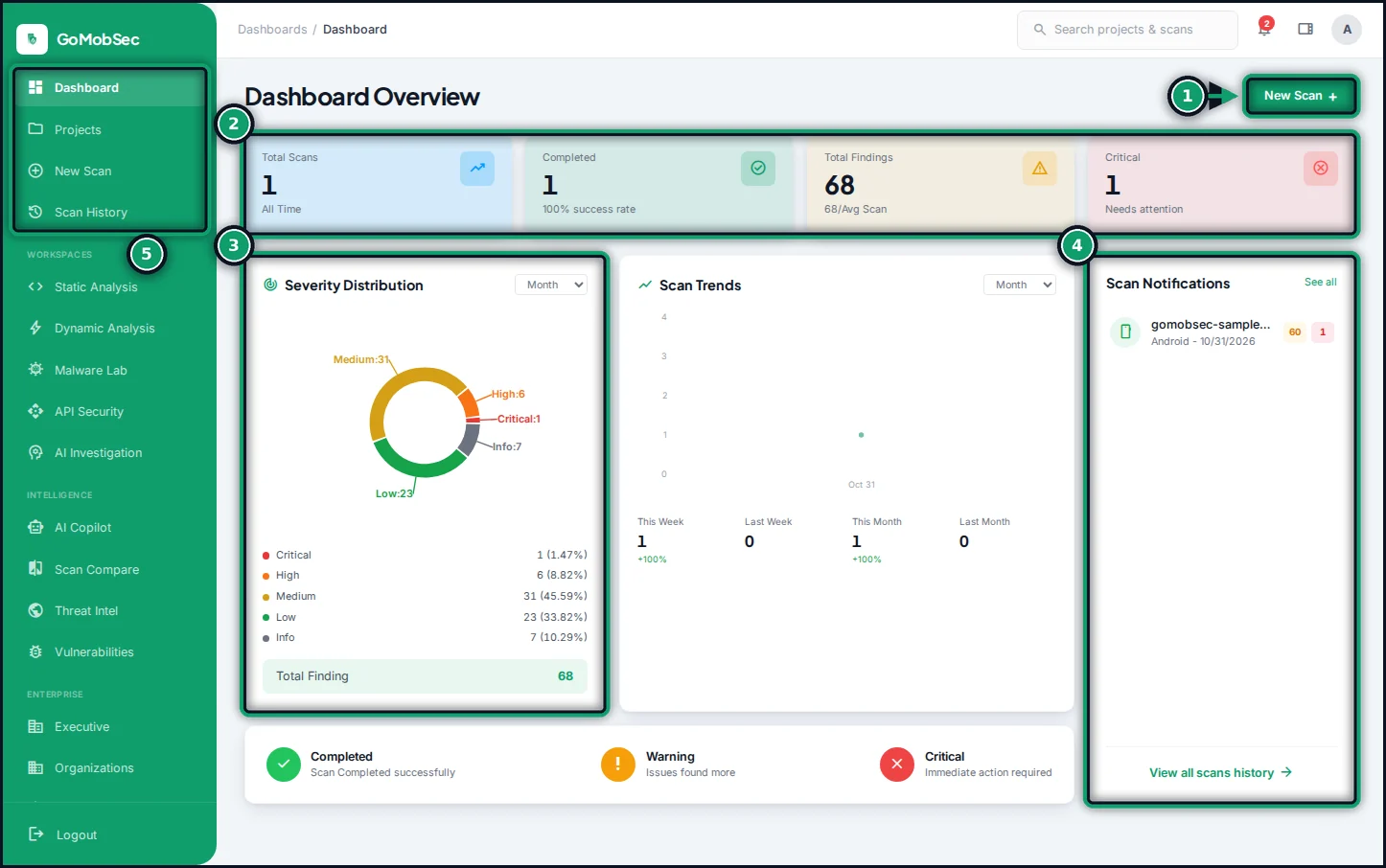
- New Scan starts a scan from anywhere on the dashboard.
- Summary cards: total scans, completed scans, total findings and critical findings.
- How your findings split by severity, across all your scans.
- Your latest scans. View all scans history opens the full list.
- The main navigation: Projects, New Scan and Scan History. API keys, billing and your profile are further down the same menu.
New accounts see a Run your first scan panel here instead of the charts. Its Scan the sample app button scans a deliberately vulnerable test app. It is free and does not use your monthly scans, so it is a good way to see a full set of results before you upload your own app.
3. Start a scan
Click New Scan. The wizard has five short steps.
Step 1 — Upload
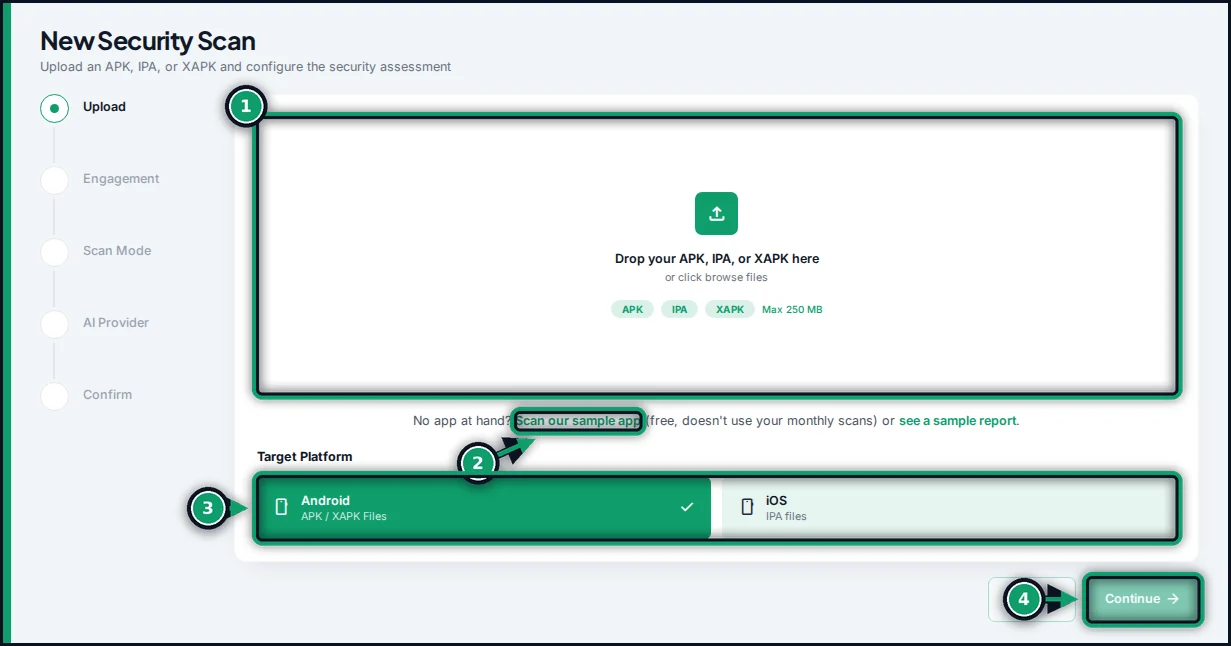
- Drop your app into the box, or click it to browse. GoMobSec accepts
.apk,.xapkand.ipafiles up to 250 MB. Split Android bundles (.apks,.apkm) are accepted from the API and the integrations. - No app at hand? Use the free sample app.
- Check the target platform: Android for APK and XAPK files, iOS for IPA files.
- Click Continue. It becomes available once a file is added.
Uploaded apps are encrypted at rest. Scan only apps you own or are authorised to test.
Step 2 — Engagement details
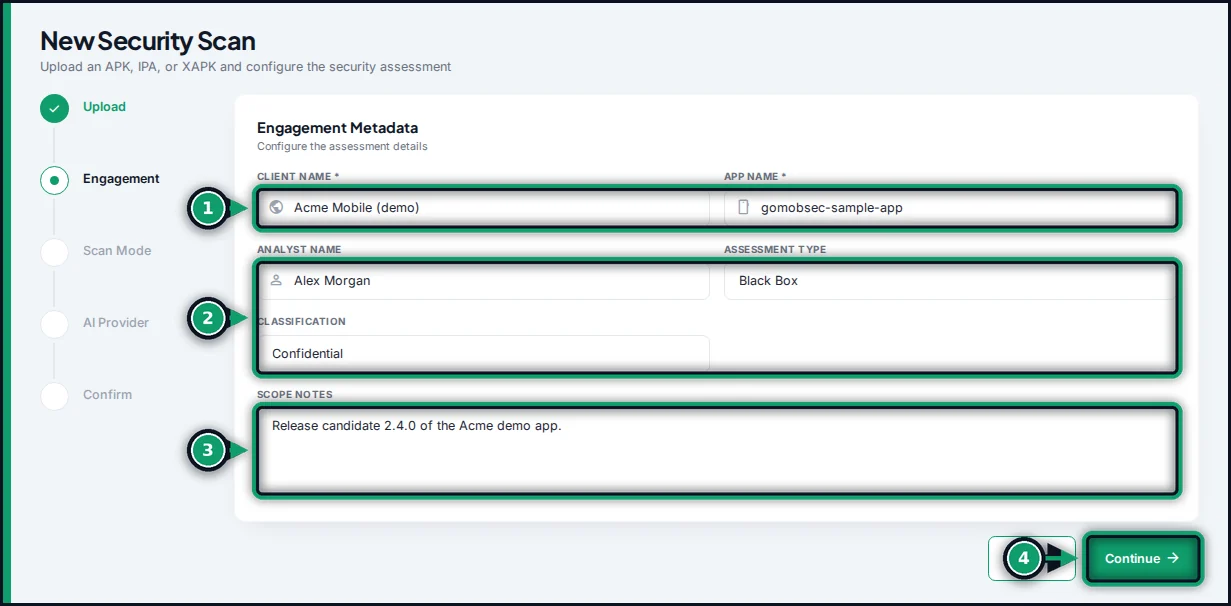
- Client name and App name (both required). The app name is filled in from the file.
- Analyst name, Assessment type (for example Black Box) and Classification.
- Scope notes: anything the report reader should know about this build.
- Click Continue.
These details go on the title page of your reports.
Step 3 — Scan mode
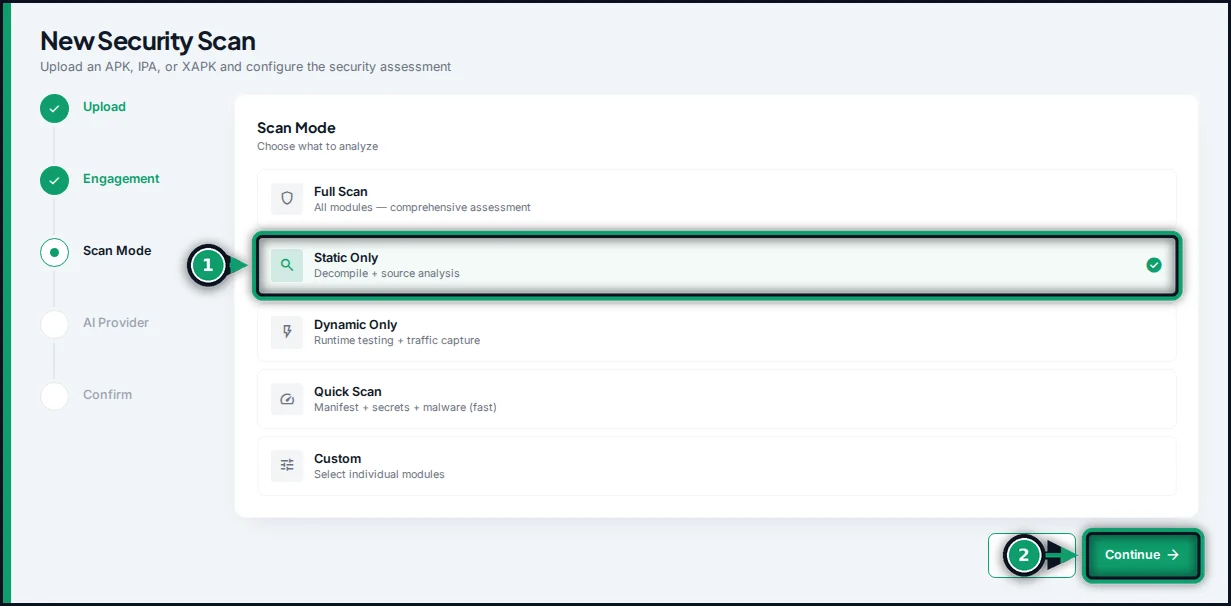
- Choose how deep to scan.
- Click Continue.
| Mode | What it does | Plans |
|---|---|---|
| Quick Scan | Manifest, hard-coded secrets and malware checks. The fastest result. | All plans |
| Static Only | Decompiles the app and analyses the code, dependencies, cryptography, privacy and network configuration. | All plans |
| Dynamic Only | Installs and runs the app on a test device and captures its runtime behaviour and traffic. | Starter and above |
| Full Scan | Every module, static and dynamic. The most complete assessment. | Starter and above |
| Custom | Pick individual modules: static, dynamic, malware, network, privacy, resilience. | Starter and above |
Step 4 — AI provider
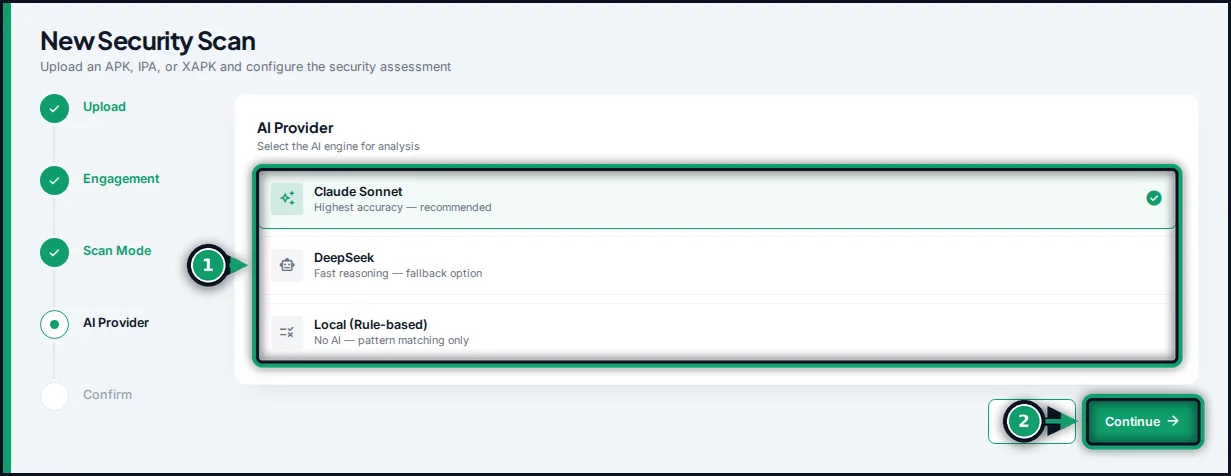
- Choose the AI engine that reviews your findings: Claude Sonnet (recommended, highest accuracy), DeepSeek, or Local (rule-based), which uses no AI. The Community plan uses Local analysis.
- Click Continue.
Before anything is sent to an AI provider, GoMobSec redacts secrets and personal data from it.
Step 5 — Review and launch
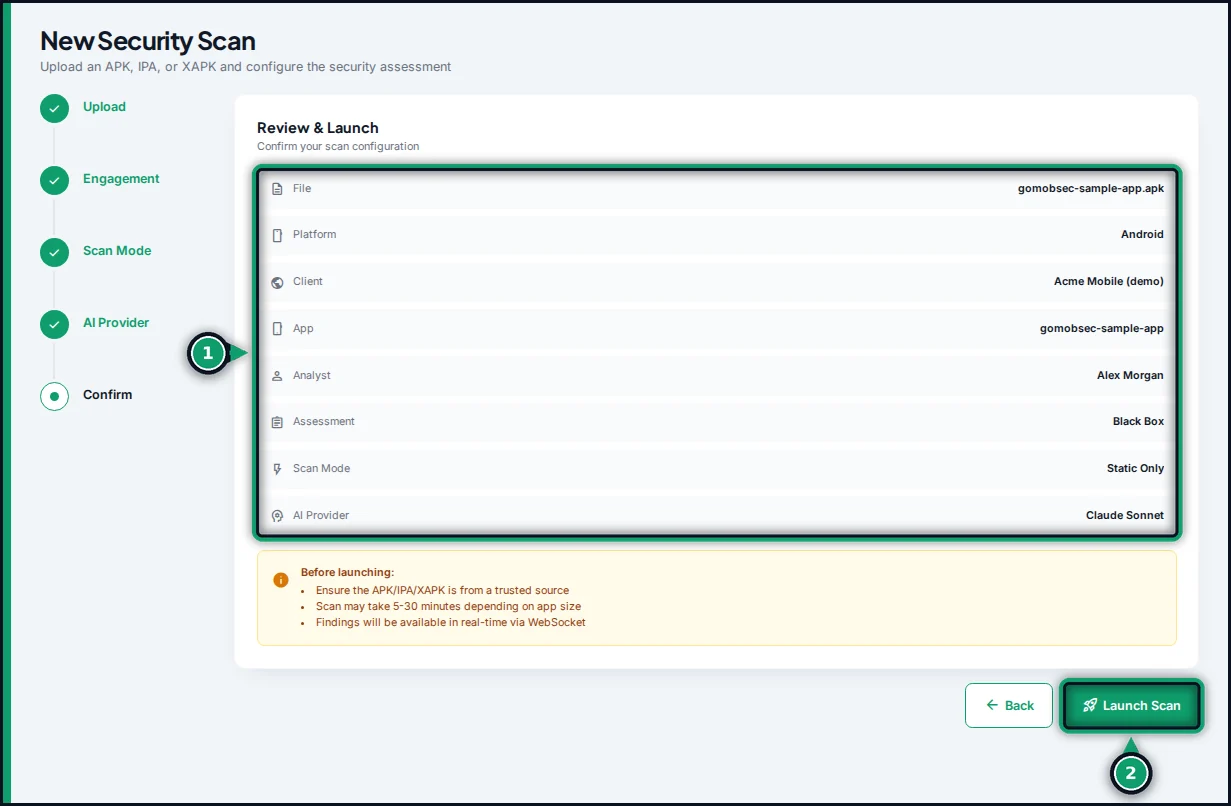
- Check the summary. Use Back to change anything.
- Click Launch Scan.
4. Follow scan progress
After launch you see the scan as it runs. It updates live, so there is no need to refresh. A quick or static scan usually takes a few minutes. Full scans of large apps can take up to about 30 minutes. You can leave the page; the scan carries on, and it appears under Scan History and in your notifications when it finishes.
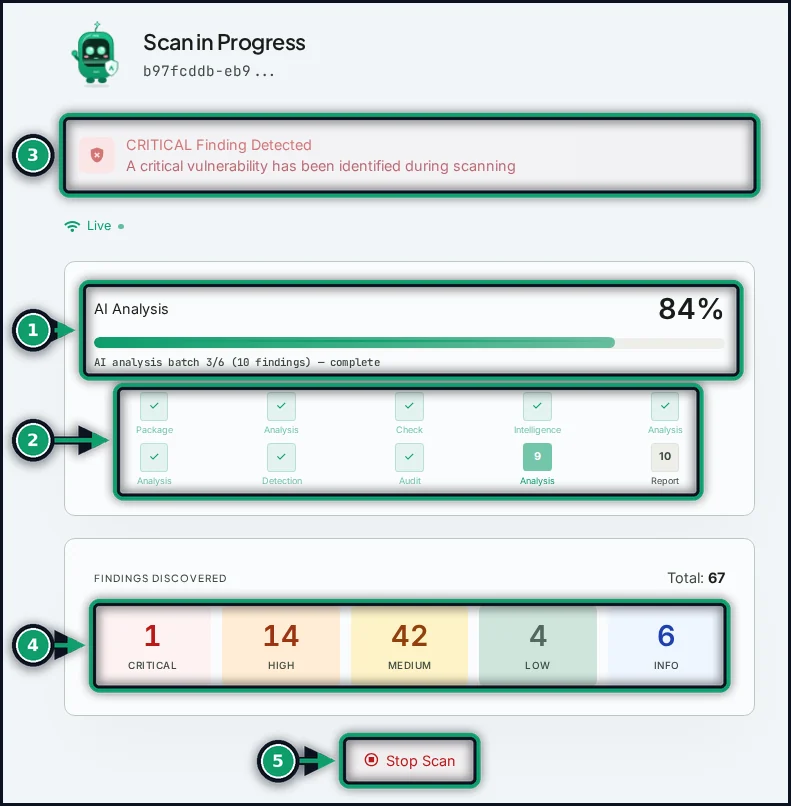
- The current stage, overall progress, and what the scanner is doing right now.
- The pipeline: unpacking, analysis, dependency checks, threat intelligence, malware, privacy, AI review and the report. Ticked stages are done.
- An alert appears as soon as a critical finding is detected.
- Findings found so far, by severity.
- Stop Scan cancels the scan.
5. Read the results
When the scan completes, the results page opens. You can also reach it from Scan History or the dashboard.
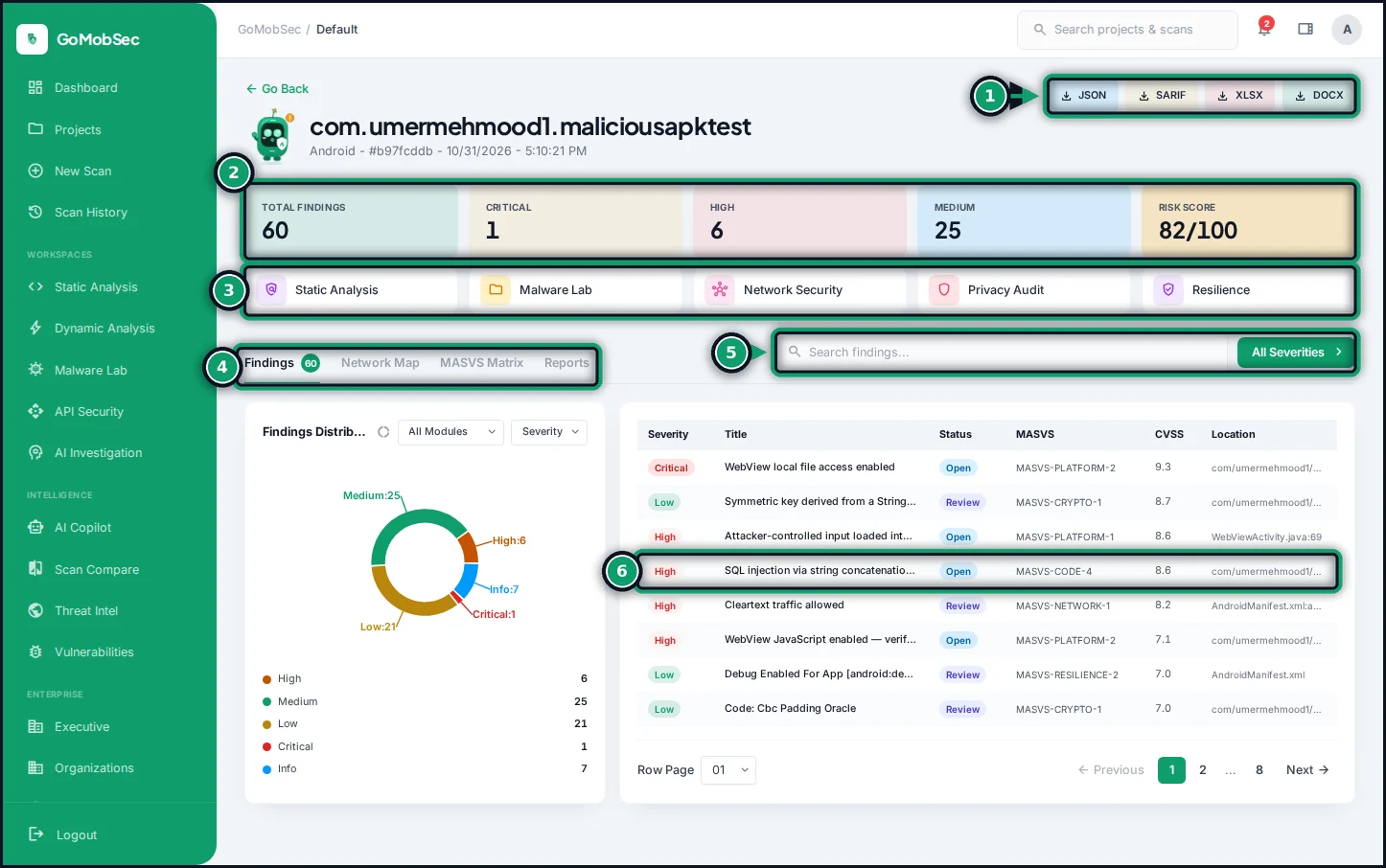
- Download the report in one click: JSON, SARIF, XLSX or DOCX. See Download reports.
- Totals by severity and the overall risk score out of 100. Higher means riskier.
- Focused views of the same scan: Static Analysis, Malware Lab, Network Security, Privacy Audit and Resilience.
- Tabs: Findings, Network Map (the hosts the app talks to), MASVS Matrix and Reports.
- Search findings, or filter them by severity.
- Click any finding to open its details.
Severity
Every finding has a severity and a CVSS score. Fix in this order:
- Critical: exploitable now with serious impact, such as remote code execution or exposed credentials. Fix before release.
- High: a realistic attack path to user data or the backend. Fix in the current release cycle.
- Medium: a weakness that needs other conditions to exploit.
- Low and Info: hardening recommendations and observations.
Findings in third-party library code are filtered out or marked informational, and likely false positives are suppressed before you see them. That is why the count on the results page can be lower than the live count during the scan.
A finding in detail
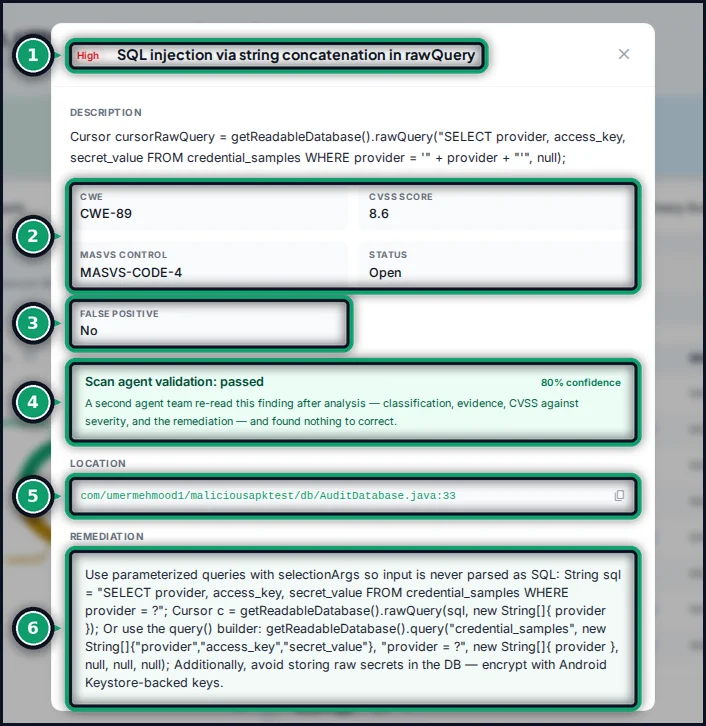
- Severity and title.
- Classification: the CWE weakness, the CVSS score, the OWASP MASVS control it fails, and its status.
- Whether the finding has been marked as a false positive.
- Validation: a second AI agent re-checks the classification, evidence, CVSS score and fix, and shows its confidence.
- Location: the file and line. The copy button copies the path.
- Remediation: how to fix it, with code.
AI analysis and attack chains
Scroll down inside the finding for the expert analysis.
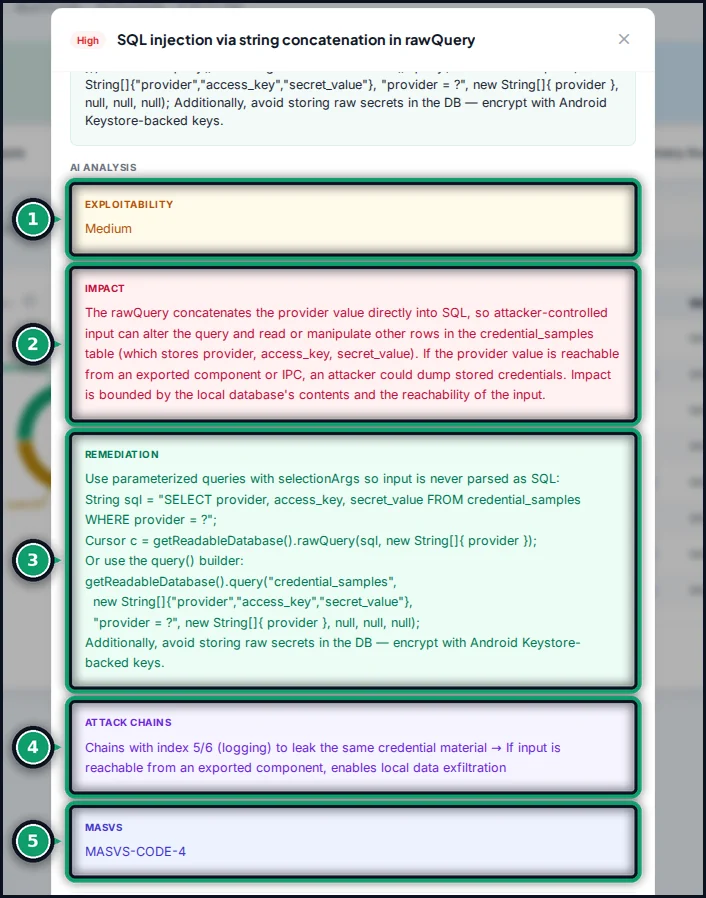
- Exploitability: how easy it is for an attacker to use.
- Impact: what an attacker gains, in the context of this app.
- Remediation: a code-level fix for this app, showing the change to make.
- Attack chains: how this finding combines with others in the same scan into a bigger attack. Fix the links in a chain together.
- MASVS: the control to cite in compliance work.
At the bottom, Decide records your triage: Accept the risk, Not a real finding (marks a false positive) or Confirmed real.
MASVS matrix
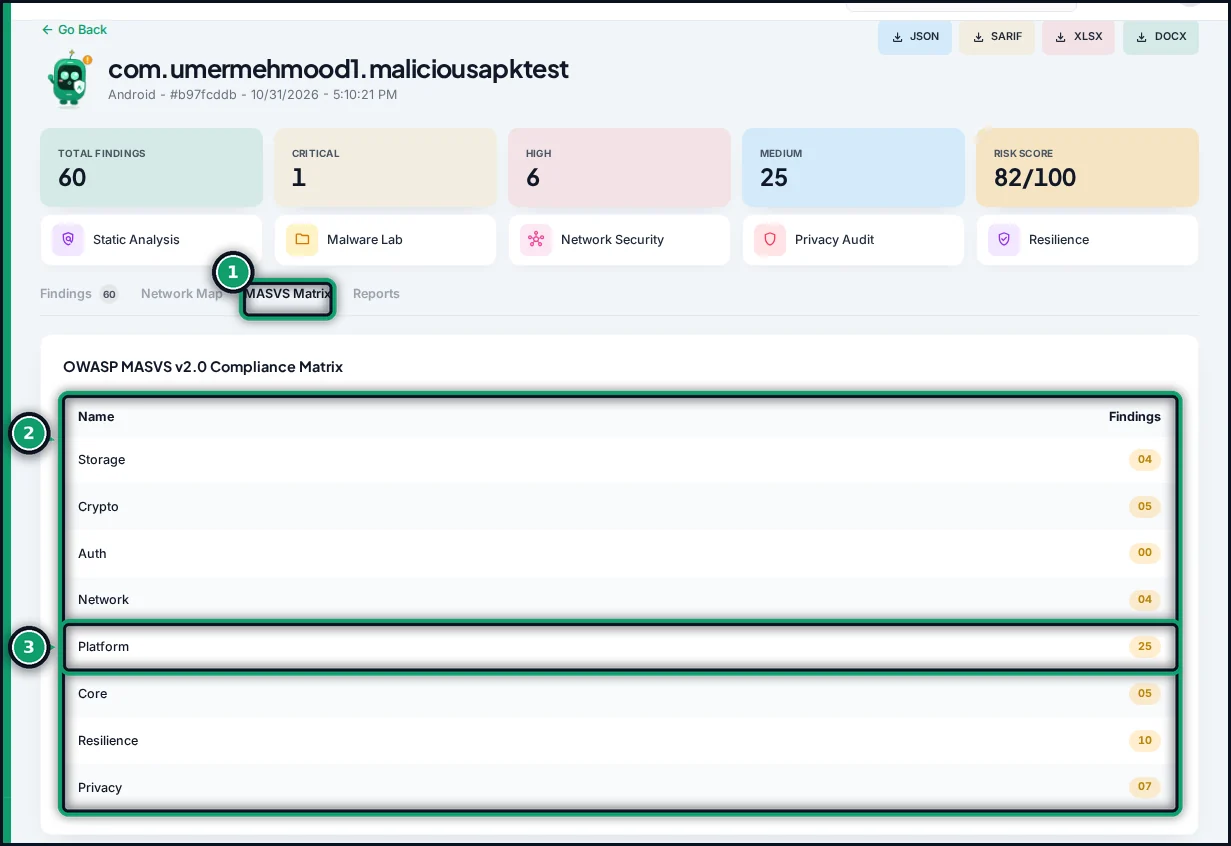
- Open the MASVS Matrix tab.
- Findings are grouped by the eight OWASP MASVS v2 categories: Storage, Crypto, Auth, Network, Platform, Code (shown as “Core”), Resilience and Privacy.
- The count shows how many findings fail controls in each category. A category with findings is where your compliance gaps are.
6. Download reports
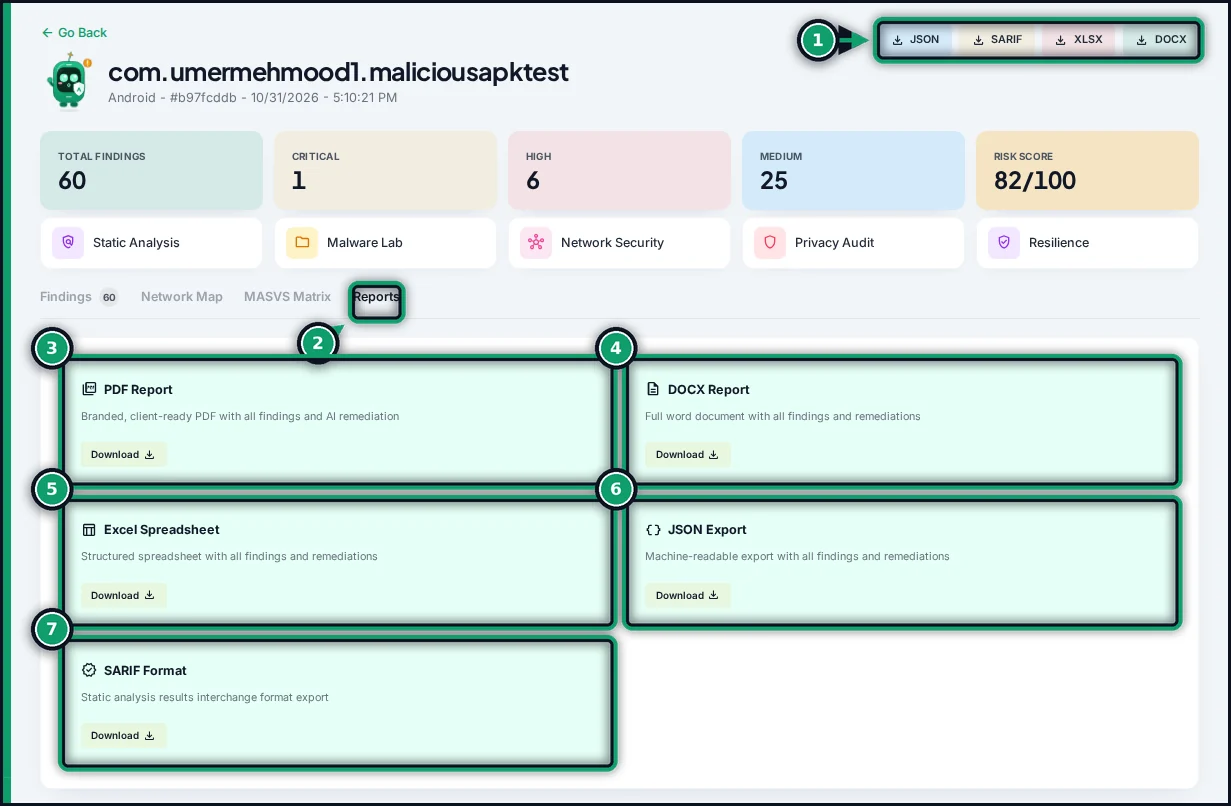
- The quick download buttons at the top of every results page.
- The Reports tab, which describes each format.
- PDF: a branded, client-ready report.
- DOCX: the full pentest-style report in Word, with executive summary, scope and methodology, the MASVS matrix, attack chains, every finding with AI analysis, evidence and remediation, and a remediation roadmap. Edit it before you send it on.
- Excel (XLSX): one row per finding, for tracking and triage.
- JSON: the machine-readable export, for scripts and your own tools.
- SARIF: the standard static-analysis format. GitHub code scanning, Azure DevOps and most IDEs import it.
The Community plan includes PDF and JSON. DOCX, XLSX and SARIF come with Starter and above.
7. Projects and scan history
Scan history
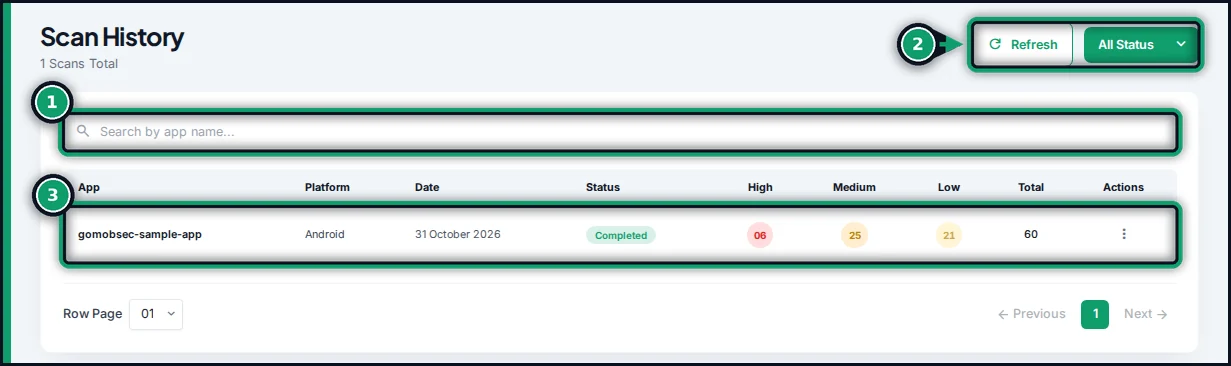
- Search your scans by app name.
- Refresh the list, or filter it by status (for example only completed or failed scans).
- Each scan shows its platform, date, status and finding counts. Click the app name to open the results.
Projects
A project groups the scans of one app, so you can follow its security over time and share it with your team.
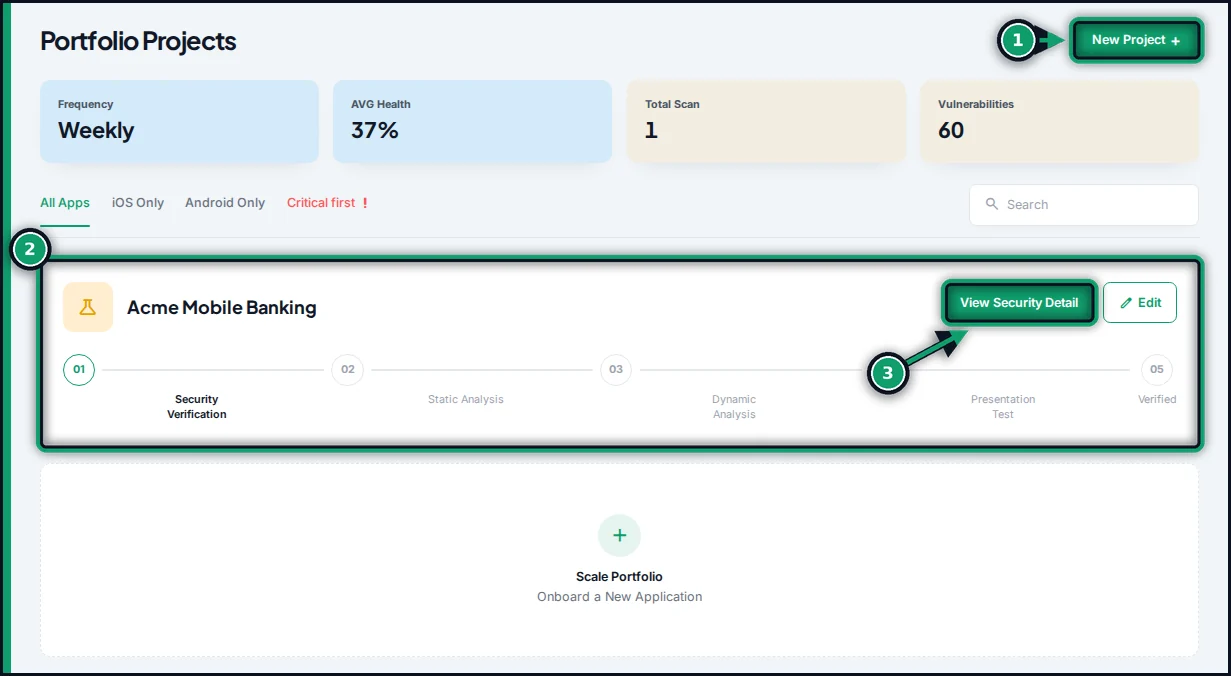
- Click New Project.
- Each project shows how far the app has come through verification.
- View Security Detail opens the project.
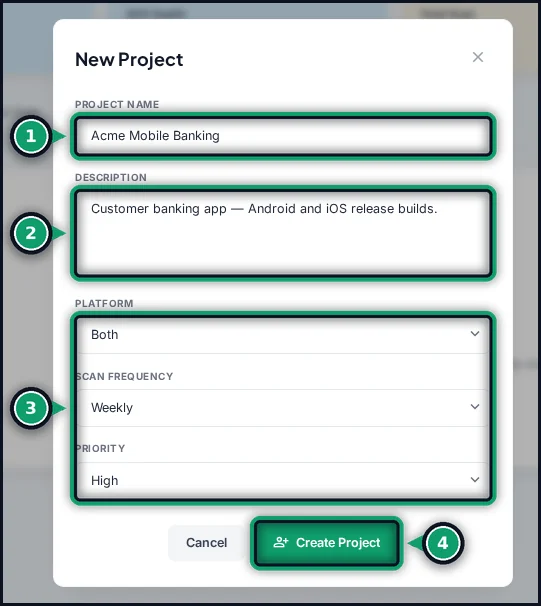
- Name the project after the app.
- Add a short description.
- Choose the platform, the scan frequency and a priority. Daily and Weekly re-scan the project’s most recent app automatically. Manual scans only when you start one. To scan every build, use CI/CD.
- Click Create Project.
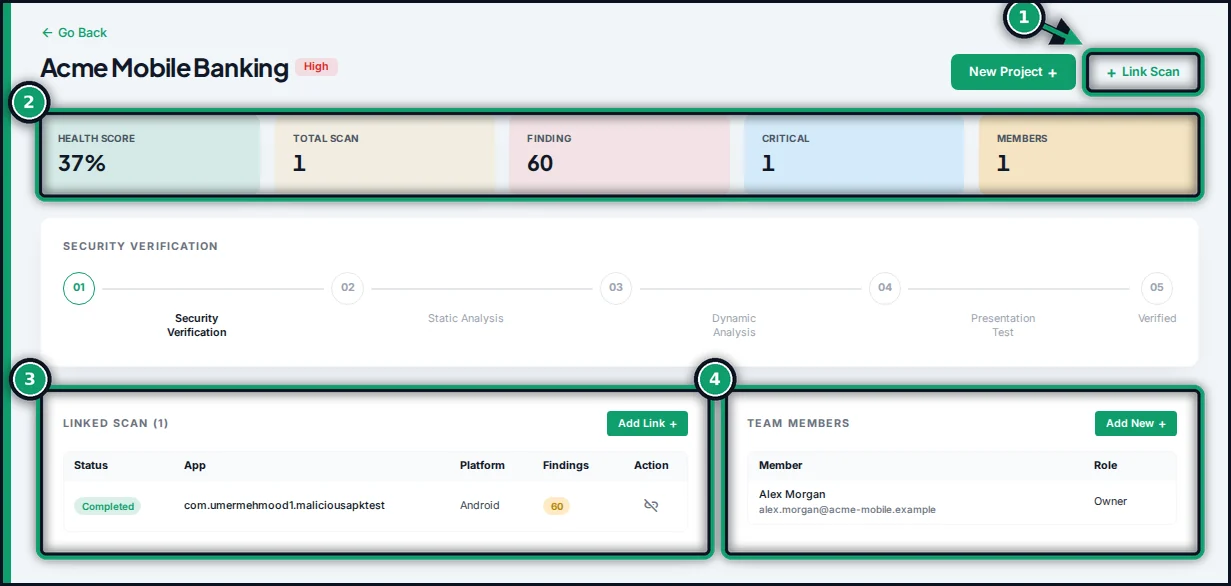
- Link Scan adds an existing scan to the project. Pick it from the list of scans that are not in a project yet.
- The project’s health score, scans, findings and critical findings.
- The scans linked to this project. Use the unlink icon to remove one.
- Team members who can see the project. Add New invites a colleague (Professional and Enterprise).
8. API keys and CI/CD
API keys let your build pipeline, scripts and tools start scans and fetch results without a password. They come with the Professional and Enterprise plans. Open API Keys from the menu.
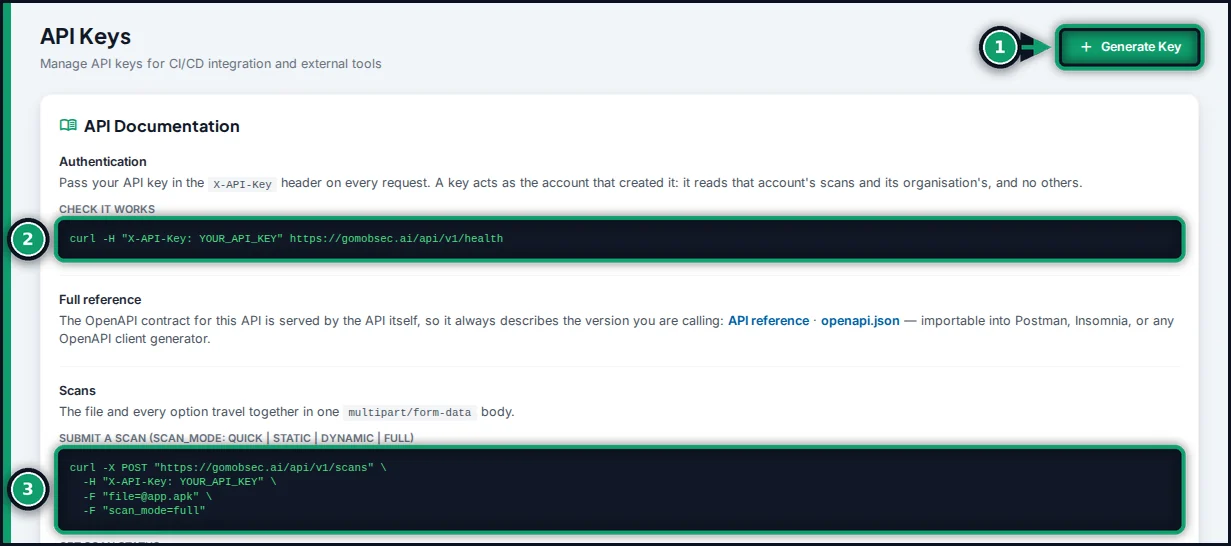
- Generate Key opens the form for a new key.
- A one-line request that checks your key works. Every request sends the key in the
X-API-Keyheader. - Ready-to-copy examples: submit a scan, get its status, list findings and download a report. API reference links to the full OpenAPI contract.
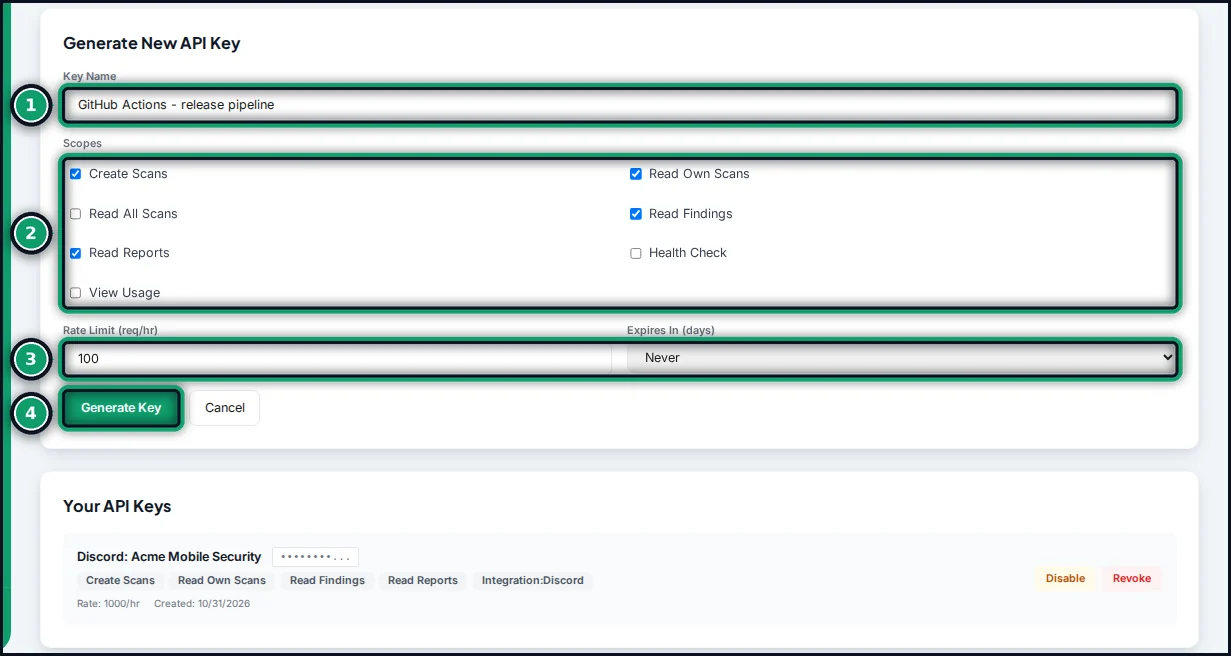
- Name the key after where it will be used, for example “GitHub Actions”.
- Choose its scopes. For CI you need Create Scans, Read Own Scans, Read Findings and Read Reports, which are selected by default. Give each key only what it needs.
- Set a rate limit and, if you like, an expiry.
- Click Generate Key.
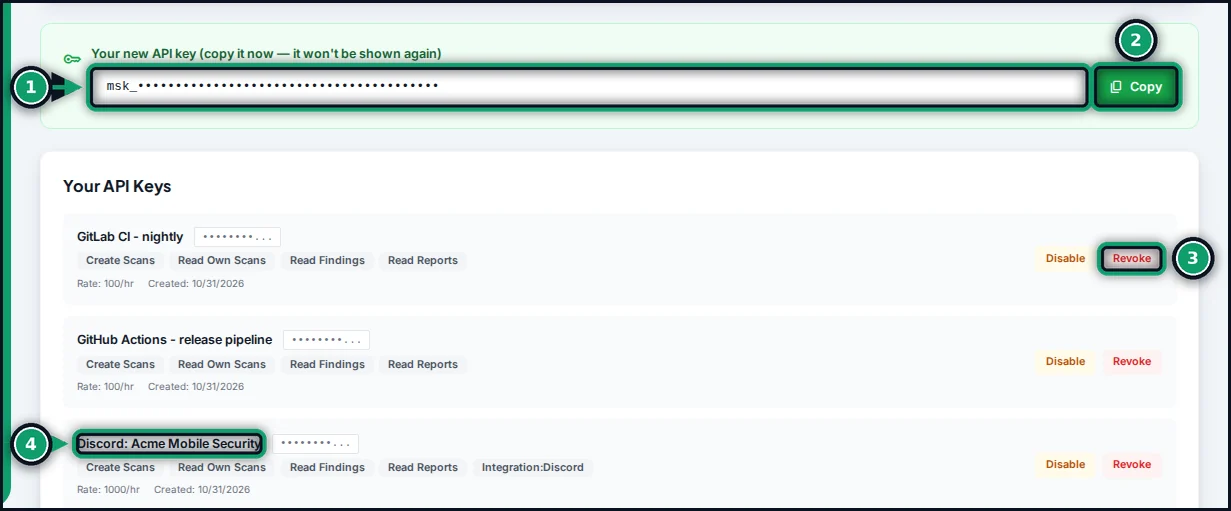
- Your new key is shown once. Store it in your CI secret store or password manager straight away. (It is masked in this screenshot.)
- Copy copies it.
- Disable pauses a key; Revoke removes it for good. Revoke a key at once if it may have leaked.
- Keys named “Discord: …” belong to a linked Discord server. Revoking one disconnects that server. See GoMobSec for Discord.
Scan every build in CI/CD
The API is at https://api.gomobsec.ai/api/v1. A pipeline uploads the build, waits for the scan, then gates the build on the result. This GitHub Actions workflow does that and also publishes the findings to GitHub code scanning. Save your key as the repository secret GOMOBSEC_API_KEY first.
name: GoMobSec scan
on:
  push:
    branches: [main]

jobs:
  security:
    runs-on: ubuntu-latest
    permissions:
      security-events: write   # to upload SARIF to code scanning
    steps:
      - uses: actions/checkout@v4
      # ... build your app here, e.g. ./gradlew assembleRelease ...

      - name: Scan with GoMobSec
        env:
          GOMOBSEC_API_KEY: ${{ secrets.GOMOBSEC_API_KEY }}
          API: https://api.gomobsec.ai/api/v1
        run: |
          SCAN_ID=$(curl -sf -X POST "$API/scans" \
            -H "X-API-Key: $GOMOBSEC_API_KEY" \
            -F "file=@app/build/outputs/apk/release/app-release.apk" \
            -F "scan_mode=static" | jq -r .scan_id)
          echo "Scan $SCAN_ID started"

          for i in $(seq 1 120); do   # up to an hour
            STATUS_JSON=$(curl -sf -H "X-API-Key: $GOMOBSEC_API_KEY" "$API/scans/$SCAN_ID")
            STATUS=$(echo "$STATUS_JSON" | jq -r .status)
            [ "$STATUS" = COMPLETED ] && break
            [ "$STATUS" = FAILED ] && { echo "Scan failed"; exit 1; }
            sleep 30
          done
          [ "$STATUS" = COMPLETED ] || { echo "Scan still $STATUS after an hour"; exit 1; }

          curl -sf -H "X-API-Key: $GOMOBSEC_API_KEY" \
            "$API/scans/$SCAN_ID/report?format=sarif" -o gomobsec.sarif

          # Fail the build on critical or high findings
          BLOCKING=$(echo "$STATUS_JSON" | jq '.critical_count + .high_count')
          echo "Critical + high findings: $BLOCKING"
          [ "$BLOCKING" -eq 0 ]

      - name: Upload results to GitHub code scanning
        if: always()
        uses: github/codeql-action/upload-sarif@v3
        with:
          sarif_file: gomobsec.sarif
The same three calls work in any CI system, including GitLab CI, Azure DevOps, Jenkins and Bitrise:
POST /scanswith the file andscan_mode(quick,static,dynamicorfull) returns ascan_id.GET /scans/{scan_id}returns thestatus(PENDING…COMPLETEDorFAILED; it can also bePAUSED), theprogress, andcritical_count,high_count,medium_countandlow_count.GET /scans/{scan_id}/report?format=withjson,sarif,excelordocxdownloads the report.
Scans started from the API count against your plan exactly like scans in the web app. GET /usage shows how many you have left this month.
9. Plans and billing
Open Billing from the menu to see your plan and change it. Current prices and the full feature list are on the pricing page.
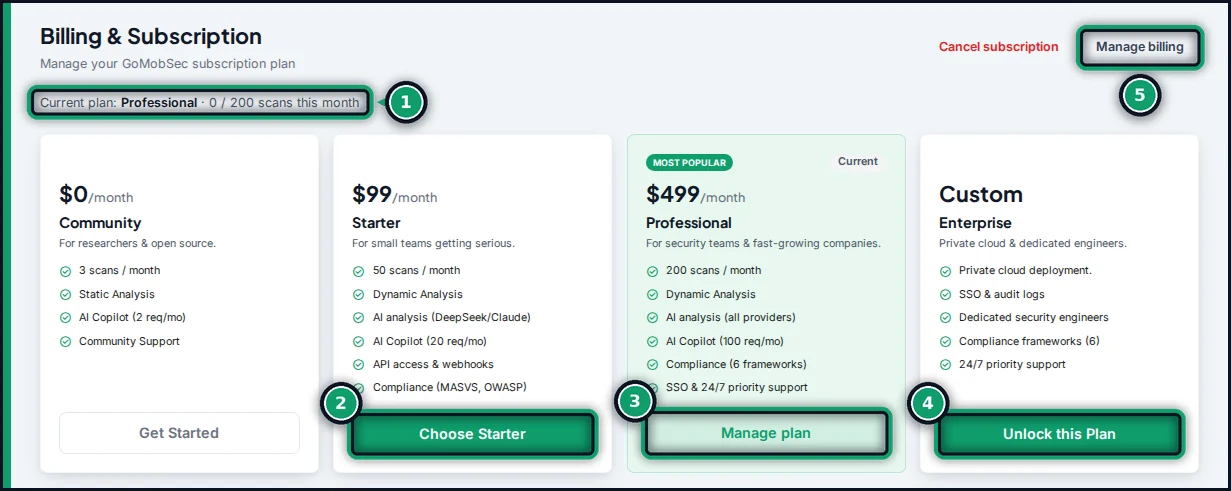
- Your current plan and how many scans you have used this month.
- Starter adds dynamic analysis, AI analysis, all report formats and 50 scans a month.
- Professional adds API access, the Discord app, team collaboration, compliance frameworks, SSO and 200 scans a month. On your current plan this button reads Manage plan.
- Enterprise adds private cloud deployment, dedicated security engineers and priority support. Unlock this Plan opens a short form, and our team contacts you.
- Manage billing opens the secure Stripe billing portal, where you change your card and download invoices.
Payments are handled by Stripe; GoMobSec never sees your card number. You can change plan at any time. If you cancel, your plan stays active until the end of the period you have paid for. Your scan allowance resets each calendar month. When it runs out, GoMobSec asks you to upgrade before starting another scan.
10. GoMobSec for Discord
Start scans and get finished-scan summaries in your team’s Discord server. The app is included with Professional and Enterprise. Servers linked to any other account can unlock it with a Discord subscription for that server. Scans always count against the linked GoMobSec account’s plan.
Connect a server
You need the Manage Server permission in Discord, and your GoMobSec account.
- Add the app: open the GoMobSec app’s profile in Discord (for example from the GoMobSec community server) and choose Add App, then pick your server.
- In your server, run
/gomobsec-admin link. Only you see the reply. It has a button that opens GoMobSec. - Approve the request in GoMobSec, as shown below.
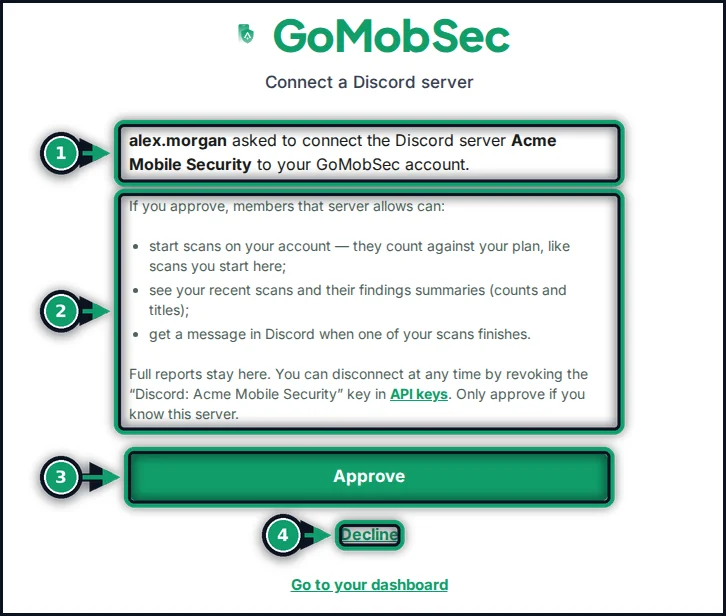
- Check who asked, and for which server. Sign in first if GoMobSec asks you to.
- What approving allows: members the server permits can start scans on your account, see recent scans with finding counts and titles, and get a message when a scan finishes. Full reports stay in GoMobSec.
- Click Approve. Go back to Discord; the server is linked within a few seconds.
- Click Decline if you do not recognise the request. Links expire after ten minutes.
No API key is ever pasted into Discord. GoMobSec issues the app its own key, which appears on your API Keys page as “Discord: server name”. Revoke it there to disconnect the server.
Set up and use
| Command | What it does |
|---|---|
/gomobsec-admin access | Choose the role that may scan and see results. By default only members with Manage Server can. |
/gomobsec-admin alerts | Pick a channel for finished-scan summaries. Finding titles are included only if you choose. |
/gomobsec scan | Attach an .apk, .ipa, .xapk, .apks or .apkm and choose Quick, Static or Full. |
/gomobsec status | Status and findings summary of one scan. |
/gomobsec scans | Recent scans on the linked account. |
/gomobsec-admin settings | How GoMobSec is set up on this server. |
/gomobsec-admin unlink | Disconnect the server and revoke its key. |
The app’s own terms and privacy policy describe exactly what it stores.
11. Use GoMobSec from your AI assistant (MCP)
The official GoMobSec MCP server lets Claude, Cursor, VS Code and other MCP clients scan apps and read results for you. For example: “Scan ./build/app-release.apk and tell me what to fix first.” It runs on your own machine, reads the APK or IPA straight from disk, and keeps your API key local.
You need an API key (Professional or Enterprise) and uv, or Python 3.10 or later.
claude mcp add gomobsec --env GOMOBSEC_API_KEY=your-key -- uvx gomobsec-mcp{
"mcpServers": {
"gomobsec": {
"command": "uvx",
"args": ["gomobsec-mcp"],
"env": { "GOMOBSEC_API_KEY": "your-key" }
}
}
}Without uv, run pip install gomobsec-mcp and use gomobsec-mcp as the command. Your assistant can then:
- start a Quick, Static or Full scan of a local file and wait for it (
start_scan,wait_for_scan); - list scans, read findings with severity, CWE, MASVS and CVSS, and check your usage (
list_scans,get_scan,get_findings,get_usage); - save the DOCX, XLSX, JSON or SARIF report to
~/Downloads/gomobsec(download_report); - turn a finished scan into a prioritised fix plan with the
security_reviewprompt.
Setup for VS Code and every option are in the gomobsec-mcp README. Scans you start from your assistant count against your plan like any other.
12. Frequently asked questions
What is GoMobSec?
GoMobSec is an AI-powered mobile application security testing platform. It scans Android (APK, XAPK) and iOS (IPA) apps with more than 25 security tools, covering static analysis, dynamic analysis on a test device, malware, network and privacy checks. AI reviews every finding, each finding is mapped to OWASP MASVS, CWE and CVSS, and the results come with code-level fixes and pentest-style reports.
How do I scan an Android APK for security vulnerabilities?
Create a free account at gomobsec.ai, click New Scan, drop in the APK, choose a scan mode and click Launch Scan. A quick or static scan usually finishes in a few minutes, and the results list every vulnerability with its severity, CVSS score, OWASP MASVS control and a code-level fix.
Can GoMobSec test iOS apps?
Yes. Upload the IPA file and choose iOS as the target platform. iOS findings are mapped to the same OWASP MASVS categories, CWE weaknesses and CVSS scores as Android findings, and appear in the same reports.
Is there a free plan?
Yes. The Community plan is free and needs no credit card. It includes three scans a month, Quick and Static scans with rule-based analysis, and PDF and JSON reports. Scanning the built-in sample app is also free and does not use your monthly scans.
How long does a mobile app security scan take?
A quick or static scan of a typical app finishes in a few minutes. A full scan, which adds dynamic analysis on a test device, can take up to about 30 minutes for a large app. Progress is shown live while the scan runs.
Which security standards does GoMobSec map findings to?
Every finding is mapped to an OWASP MASVS v2 control, a CWE weakness and a CVSS score, and is grouped in a MASVS compliance matrix. Professional and Enterprise plans add compliance assessments against regulatory frameworks.
How does GoMobSec reduce false positives?
Findings in third-party library code are filtered out or marked informational, a second AI agent validates each finding and its CVSS score, and likely false positives are suppressed before you see them. You can also mark any finding as not real, which records your triage decision.
Can I run GoMobSec in a CI/CD pipeline?
Yes. With an API key (Professional and Enterprise plans), any pipeline, including GitHub Actions, GitLab CI, Azure DevOps, Jenkins and Bitrise, can upload each build to the GoMobSec REST API, wait for the scan, fail the build on critical or high findings, and publish SARIF results to GitHub code scanning.
Does GoMobSec work with AI assistants like Claude, Cursor or VS Code?
Yes. The official GoMobSec MCP server, installed with "uvx gomobsec-mcp", lets Claude, Cursor, VS Code and other MCP clients start scans of local APK or IPA files, read findings and download reports. It runs on your own machine and keeps your API key local.
Which report formats does GoMobSec produce?
GoMobSec produces a DOCX pentest-style report, a branded PDF, an Excel (XLSX) spreadsheet with one row per finding, a JSON export and SARIF for code-scanning tools. The free plan includes PDF and JSON; Starter and above include every format.
Is my app safe when I upload it to GoMobSec?
Uploaded apps are encrypted at rest with AES-256-GCM, the decompiled code is deleted after every scan, and secrets and personal data are redacted before anything is sent to an AI provider. Only scan apps you own or are authorised to test.
13. Getting help
- Email support@gomobsec.ai. Include the scan ID from the results page if your question is about a scan.
- Ask in the GoMobSec community server on Discord.
- How we handle your apps and data: Privacy Policy.